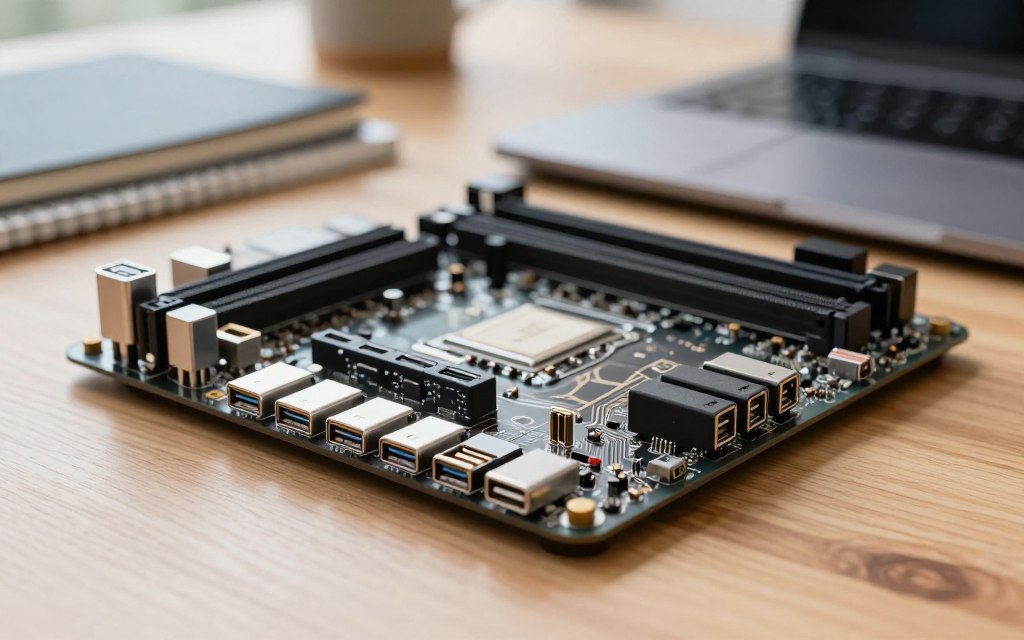

Finding the motherboard USB port count can be hard without technical documents. Fortunately, Google AI offers a quick way to find it.
The answer includes rear external ports and internal headers for front-panel setups. First, identify your motherboard model accurately. Then search “how many USB ports does my motherboard have google ai” for its USB details.
Check the answer against the manufacturer’s product page or manual. AI can respond quickly, but its information may be incomplete or outdated. Verification helps ensure the details are accurate.
Key Takeaways
- Google AI simplifies finding USB connectivity details.
- Identify your motherboard model for accurate information.
- Understand the difference between external ports and internal headers.
- Always verify AI-generated data against official sources.
- Expect that some information may be outdated or incomplete.
Understanding USB Ports on Modern Motherboards
Motherboard USB ports help you use your computer’s full range of features. They connect keyboards, mice, webcams, external storage drives, printers, game controllers, and smartphones. Strong USB connectivity can improve your overall computing experience.
The number and types of motherboard USB ports depend on the chipset and processor platform. Rear I/O design, internal headers, and the manufacturer’s choices also affect the total. This variety lets users connect multiple devices at once, which matters in today’s technology-driven world.
The Role of USB Ports in PC Functionality
USB ports support modern PC functions. They transfer data and provide power to connected devices. You can move files quickly and charge devices without separate power sources.
Evolution of USB Standards from USB 1.0 to USB4
USB standards have advanced greatly, with each version adding useful capabilities. Here is a brief overview of this progress:
| USB Version | Year Introduced | Max Speed | Connector Types |
|---|---|---|---|
| USB 1.0 | 1996 | 1.5 Mbps | Type-A, Type-B |
| USB 2.0 | 2000 | 480 Mbps | Type-A, Type-B, Mini |
| USB 3.0 | 2008 | 5 Gbps | Type-A, Type-B, Micro-B |
| USB 3.1 | 2013 | 10 Gbps | Type-A, Type-C |
| USB4 | 2019 | 40 Gbps | Type-C |
Newer USB standards, such as USB4, offer much faster transfer speeds. However, connected devices do not always reach these enhanced speeds automatically. USB4 motherboard support still depends on the device and port specifications.
USB Type-A and USB Type-C describe physical connector shapes, while version numbers show their capabilities. This difference helps users understand responses from tools like Google AI about motherboard USB ports.
Why Knowing Your USB Port Count Matters
Knowing your motherboard’s USB port count helps you manage devices. During PC setup, this number guides your choices. It also helps you connect peripherals without problems.
Many users connect devices such as external SSDs, audio interfaces, VR equipment, and cameras. Each device needs a USB connection, so your USB port count helps you plan. List your peripherals and compare them with available ports to avoid adapters or hubs.
Planning Peripheral Connections
Effective PC peripheral planning begins with your USB port count. With limited ports, prioritize the devices you need most. High-bandwidth devices, such as external SSDs, may need faster ports, while basic accessories can use standard connections.
Check your motherboard manual for electrical details to avoid USB power limits. Some ports may not provide enough power for demanding devices. This can cause connection problems or device failures.
Avoiding Compatibility and Power Issues
Your USB port count also helps ensure device compatibility. USB 2.0, 3.0, and 3.1 standards offer different speeds and features. A high-speed device connected to a slower port may suffer performance bottlenecks.
Knowing which ports share bandwidth helps prevent motherboard overload. This can reduce performance or cause devices to malfunction. Always check your motherboard’s specifications for strong performance and compatibility.
| Device Type | Typical USB Requirement | Recommended Port Type |
|---|---|---|
| External SSD | High bandwidth | USB 3.0 or higher |
| Audio Interface | Moderate bandwidth | USB 2.0 or higher |
| VR Equipment | High bandwidth | USB 3.0 or higher |
| Camera | Moderate bandwidth | USB 2.0 or higher |
| Charging Devices | Low bandwidth | Standard USB |
Common USB Port Types Found on Motherboards
Learning about common USB port types on motherboards helps you choose the right PC setup. These ports help connect many devices effectively. The main types appear below.
USB Type-A Ports
USB Type-A ports are traditional, rectangular connectors used for many peripherals. They connect keyboards, mice, flash drives, and printers. Their wide use makes them common in most computer setups.
USB Type-C Ports
USB Type-C ports are smaller and reversible, offering a modern alternative to Type-A. They support different USB speeds, video output, fast charging, and alternate modes. However, the motherboard and connected device determine their capabilities.
Internal USB Headers for Front Panel Connectors
Internal USB headers connect front-panel USB connectors, card readers, and other internal accessories. Do not count these headers as accessible rear ports. Motherboards may include several header types, including:
| Header Type | USB Version | Typical Use |
|---|---|---|
| USB 2.0 Header | USB 2.0 | Basic peripherals like keyboards and mice |
| USB 3.0 Header | USB 3.0 | High-speed devices like external hard drives |
| USB-C Header | USB 3.1/3.2 | Latest devices with fast charging and data transfer |
Check your motherboard’s manual to confirm each header’s capabilities, compatibility, and function. Understanding these types can improve your overall PC setup experience.
How to Check Your Motherboard Model Number
Knowing your motherboard model number can make tech upgrades easier. Manufacturers often sell similar boards with different USB layouts. Here are three effective ways to identify your board.
Using System Information Tools in Windows 11
Windows 11 System Information helps you find your motherboard model number. Follow these steps to use this built-in tool:
- Click on the Start menu and type System Information.
- Open the application and look for the BaseBoard Manufacturer and BaseBoard Product fields.
For more detail, use Command Prompt or PowerShell. Type wmic baseboard get product, manufacturer to show the same information.
Checking Physical Labels on the Motherboard
If software tools fail, inspect the motherboard label. Shut down and unplug your computer before opening the case. Look for printed model markings in these common locations:
- Near the center of the motherboard
- Along the edges
- Close to PCIe slots or memory slots
These labels usually show the exact motherboard model number. This information helps with upgrades and compatibility.
Accessing BIOS or UEFI for Model Details
You can also use BIOS or UEFI for BIOS motherboard identification. Start your computer and press the designated key, often F2, Del, or Esc, to open setup. The manufacturer and model usually appear on the main system information screen.
Check revision numbers because later versions may have different specifications.
| Method | Details | Pros | Cons |
|---|---|---|---|
| Windows 11 System Information | Access via Start menu | Quick and easy | May not show all details |
| Physical Inspection | Look for labels on the motherboard | Direct and reliable | Requires opening the case |
| BIOS/UEFI | Access during boot-up | Comprehensive information | Technical knowledge required |
How Many USB Ports Does My Motherboard Have Google AI: Querying for Results
Google AI can help you find your motherboard’s USB port count. For accurate results, use a clear model-specific question. This approach supports an AI USB port search.
Preparing Your Query for Google AI
Turn your main question into a detailed query for your exact motherboard. Include the manufacturer, model, and revision before asking. For example, you might ask: “How many rear USB ports and internal USB headers does the ASUS ROG Strix B650E-F Gaming WiFi motherboard revision 1.xx have? Separate USB Type-A, USB Type-C, and front-panel headers, and cite the official manual.” This detail helps Google AI provide more precise motherboard USB specifications.
Submitting Your Question to Google Gemini
Submit your question through Google AI Search or the Google Gemini interface. Enter the query in the search bar, then press Enter. A Google Gemini motherboard lookup can process your request using its available data sources.
Reviewing the AI-Generated Response
Check the model number, port categories, and USB versions in the AI response. Look for primary sources, such as the manufacturer’s website or product manuals. Verify the answer because AI-generated information can contain errors.
Step-by-Step Guide to Using Google AI for USB Port Lookup
Google AI USB lookup can help you identify ports on any motherboard brand. This guide shows a clear five-step process.
Step 1: Identify Your Exact Motherboard Model
First, confirm your motherboard’s exact name and revision for exact motherboard identification. This information helps produce accurate results.
Locating Model Information in Windows
- Open the Start menu and type “System Information.” This tool will display your motherboard model.
- Alternatively, use the command prompt by typing
wmic baseboard get product,Manufacturer.
Step 2: Open Google AI Search or Gemini Interface
Next, open Google AI Search or Gemini in your web browser. If needed, sign in to your Google account to use the service fully.
Accessing Gemini Through a Web Browser
Type “Google AI” or “Gemini” into your browser’s search bar, then follow the prompts.
Step 3: Enter Your Specific Query
Now create your query. A clear prompt helps you get useful information.
“How many USB ports does my [exact motherboard model] have, including transfer standards and sources?”
Crafting an Effective Prompt
Specify the ports you want, such as rear USB ports or internal USB headers.
Step 4: Analyze the Returned Information
After AI responds, review the details carefully. Check for the following:
- Counts of rear-panel connectors.
- Information on internal headers.
- Specifications for USB 2.0, USB 3.x, and USB-C ports.
Identifying Rear Panel and Header Ports
Knowing the difference between these ports helps you plan your connections.
Step 5: Cross-Reference with Official Sources
Finally, compare the results with official motherboard documentation. This check improves accuracy and reliability.
Validating Against Manufacturer Documentation
Visit the manufacturer’s website for the official product page, technical specifications, and downloadable manual. These sources can confirm the AI’s findings.
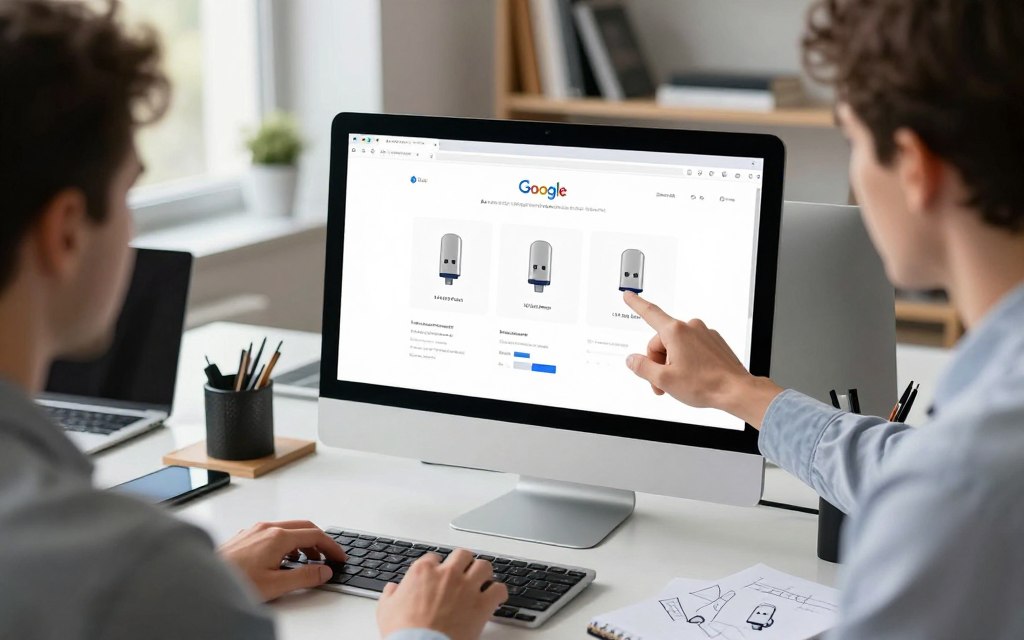
These steps help you use Google AI for USB port lookup with confidence. For more ideas about using AI in your business, read this step-by-step guide.
Verifying Google AI Results Against Manufacturer Specs
Verify AI motherboard information against official sources to confirm your board’s correct specifications. Confident AI answers still need careful checking.
Visiting Official Manufacturer Websites
Start by visiting your motherboard manufacturer’s official website. It usually offers the most reliable manufacturer motherboard specs. Look for:
- The exact model name of your motherboard
- The revision number, which can affect specifications
- The chipset used on the motherboard
- A comprehensive list of rear I/O ports
- Details about internal connectors
Reading the Official Product Manual
The motherboard user manual is another essential resource. It often gives the most detailed information about:
- USB port types and counts
- Internal headers and their specifications
- Connection diagrams for various components
The product specification page gives a quick overview. However, the user manual provides valuable details for deeper research.
Comparing Specifications Across Multiple Sources
For accuracy, compare information from at least two official references. This USB specification comparison can include:
- The product page on the manufacturer’s website
- The user manual
When sources disagree, trust documents matching your exact motherboard revision and regional model. General search results and third-party listings can cause confusion.
Alternative Methods to Identify USB Ports
You can identify motherboard USB ports in several ways. Google AI is quick, but other methods help confirm accurate results.
Using Device Manager in Windows
The Windows Device Manager is a built-in tool for viewing and managing hardware connected to your PC. Windows Device Manager USB checks can help identify USB controllers:
- Right-click on the Start menu and select Device Manager.
- Expand the Universal Serial Bus controllers section.
- Review the list of USB controllers and hubs.
This method shows USB controllers, but it may not match your motherboard’s physical port count.
Running Third-Party System Tools Like HWiNFO
For deeper analysis, use third-party tools such as HWiNFO. HWiNFO motherboard information includes details about your motherboard, chipset, and connected devices. To use HWiNFO:
- Download and install HWiNFO from its official website.
- Run the program and navigate to the Motherboard section.
- Look for details on USB controllers and connected devices.
HWiNFO can show extensive motherboard information, but it may miss unused headers or some external ports.
Physically Inspecting the Rear I/O Panel
One simple way to count USB ports is physically inspecting the rear I/O panel. You can inspect rear I/O panel connections to see available ports. Follow these steps:
- Turn off your PC and unplug it from the power source.
- Carefully open the case and locate the rear I/O panel.
- Count the visible USB ports.
Combine this inspection with your motherboard manual, because similar ports may use different USB standards. Internal headers cannot be counted from the rear panel.
| Method | Advantages | Limitations |
|---|---|---|
| Device Manager | Easy access, built-in tool | Does not show physical port count |
| HWiNFO | Detailed motherboard info | May not identify all ports |
| Physical Inspection | Directly counts visible ports | Requires case access, manual check |
Interpreting USB Port Specifications Correctly
Accurately interpreting USB port specifications can enhance your overall computing experience. Understanding USB port differences helps your devices connect and work properly. This section explains rear-panel USB ports, front-panel USB ports, USB version numbers, and internal headers.
Understanding Rear Panel vs. Front Panel Ports
Rear-panel USB ports usually sit on the motherboard’s I/O shield or rear I/O area. They support permanent connections, including keyboards, mice, and printers. Front-panel USB ports connect through internal headers and case cables, offering easy access for flash drives and external hard drives.
Decoding USB Version Numbers and Transfer Speeds
USB version numbers, including USB 2.0, USB 3.x, and USB4, show port standards and features. For example, USB 2.0 supports theoretical USB transfer speeds of up to 480 Mbps. USB 3.2 Gen 1 can reach up to 5 Gbps.
These speeds are not guaranteed in every situation. The connected device, cable quality, and shared bandwidth can affect actual performance.
Recognizing Internal Headers vs. External Ports
When checking motherboard specifications, distinguish internal headers from external ports. Count “four USB 3.2 Gen 1 ports” separately from “two USB 2.0 headers.” The latter may support several case connectors, depending on the header and cable design.
Understanding these differences helps you plan connections effectively.
Understanding these specifications helps you avoid common problems and ensure your USB connections meet your needs. For further information on how many USB ports your motherboard has, visit this resource.
Troubleshooting Inaccurate USB Port Information
Knowing the risks of AI-generated USB port counts is important. Many people trust automated systems, but they may produce misleading results. Learning common errors can help you troubleshoot problems.
Common Errors in AI-Generated Responses
AI tools may give inaccurate AI answers for several reasons:
- Similar Motherboard Models: Sometimes, the AI confuses your motherboard with a similar model, leading to incorrect port counts.
- Combining Port Types: The system might combine rear ports with internal headers, resulting in inflated numbers.
- Misidentifying USB-C Ports: There can be confusion between standard USB-C ports and those that support video output.
- Using Newer Specifications: If the AI references specifications from a newer revision, the data may not apply to your model.
Handling Outdated or Conflicting Specifications
Outdated motherboard specifications may cause conflicting USB information. When details differ, follow these steps:
- Check Model Revisions: Always verify the exact model number and its revision to ensure compatibility.
- Inspect Official Diagrams: Look for diagrams that clearly illustrate the port layout on the manufacturer’s website.
- Consult Downloadable Manuals: These often provide the most accurate and detailed specifications.
Resolving Missing Port Information
If you find missing USB port details, refine your AI queries. Use these strategies:
- Request Detailed Tables: Ask for a port-by-port breakdown with source citations to clarify any uncertainties.
- Contact Manufacturer Support: If inconsistencies persist, reach out to the manufacturer’s support team for assistance.
- Review Product Listings: Be cautious, as retailers sometimes reuse generic descriptions that can mislead buyers.
Planning Your PC Setup Based on Available USB Ports
Planning a PC USB setup requires careful thought about the USB ports you have. Knowing how to match peripherals to USB ports can improve your computing experience. Because devices need connections, learn your motherboard’s USB configuration.
Matching Peripherals to Available Ports
Connect simple input devices, such as keyboards and mice, to standard USB ports. This helps them work smoothly without competing for bandwidth. Reserve high-speed ports for external SSDs, capture devices, and cameras because they need more bandwidth.
Considering USB Hubs and PCIe Expansion Cards
If you need more connections, USB hub planning offers a practical solution. A powered USB hub lets several devices connect at once, but connected devices may share bandwidth. Choose a hub that matches your USB standard and power needs to prevent performance issues.
If you need more high-speed or independently controlled connections, a PCIe USB expansion card offers an excellent option. Check that your case has an available PCIe slot and your power supply supports the card. It provides more dedicated bandwidth for demanding peripherals.
Before finalizing your build, document your available rear ports, front-panel connections, and future expansion needs. Careful planning helps you create a robust and efficient PC USB setup.
Conclusion
Understanding your motherboard’s USB ports supports effective USB connectivity planning. This motherboard USB port guide helps you find available ports and identify their types. First, identify your exact motherboard model for an accurate USB port count.
Google AI USB research can make your search faster. Ask Google AI or Google Gemini a precise question about your motherboard’s USB capabilities. Separate rear-panel ports from internal headers because this affects your peripheral choices.
Understanding USB types and standards helps you choose compatible devices. Check every detail against the manufacturer’s product page or manual to confirm your information. An accurate USB port count helps you plan peripherals, additional hubs, or PCIe expansion cards.
With the right approach, Google AI can improve your research experience. It is a powerful tool for learning about your motherboard’s USB configuration. For reliable results, always cross-reference official documentation.


 By
By